Getting Started
New Player Basics
The core controls, menus, and concepts every officer should know on day one.
This guide is your day-one cheat sheet: the core controls, menus, and on-screen information every officer should know before heading out on patrol.
Reading Your HUD
Your heads-up display shows only what matters, keeping your screen clear so you can focus on the action.
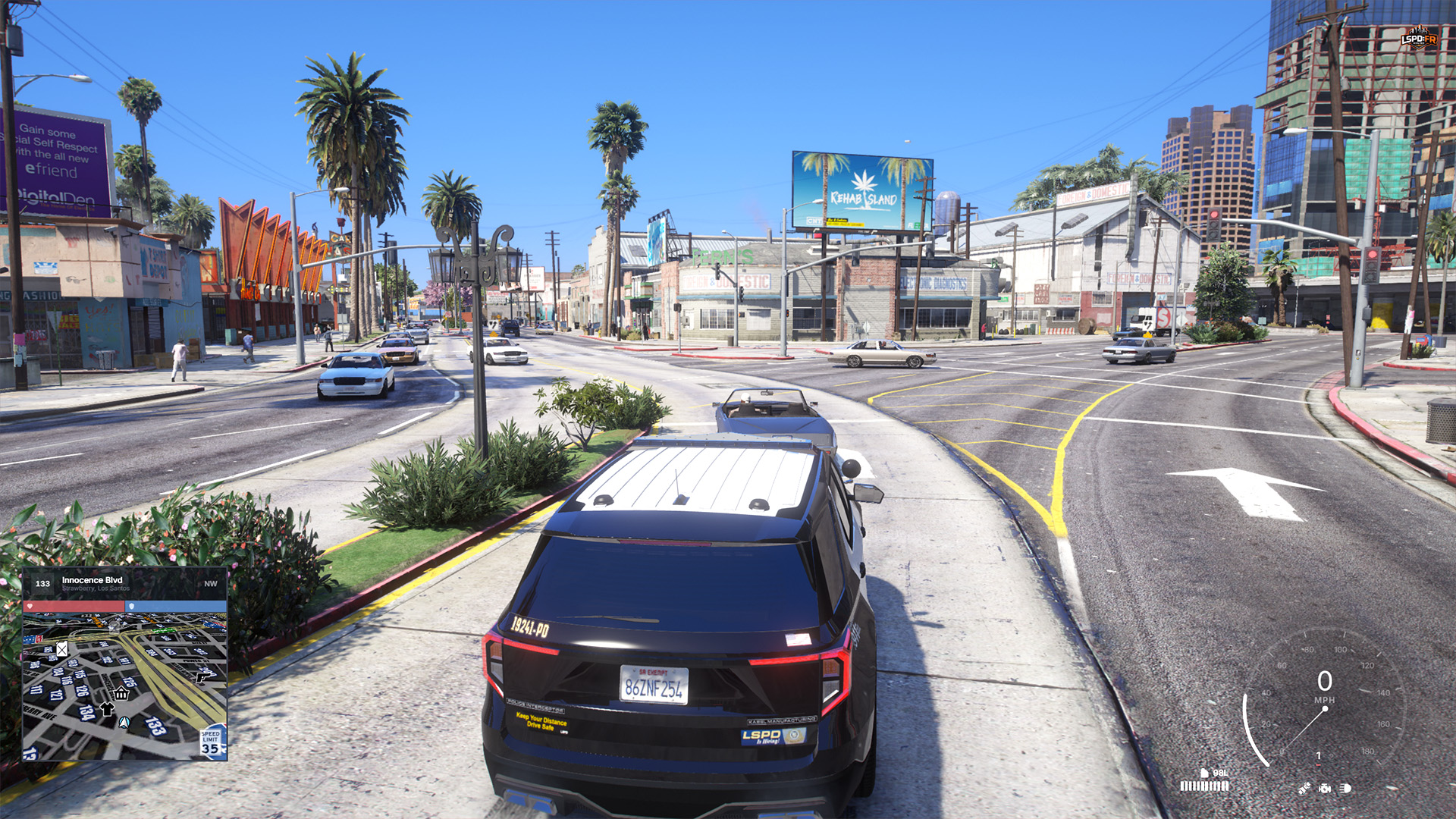
- Bottom-left: Your location, health, armour, and the minimap. The local road's speed limit is shown at the bottom-right inside the minimap.
- Bottom-right: The speedometer, showing your vehicle's status and fuel level. A simpler speedometer is available in the Settings menu if you prefer a more minimalistic look.
Key Menus & Controls
These are the keys you'll use most often. Keep them handy until they become second nature.
| Key | What It Does |
|---|---|
| Up Arrow | Opens the Action Menu — call for backup, use your radio, and more. |
| E | Interact with the world around you — NPCs, vehicles, and points of interest. |
| Tab | Opens the Weapon Selector hot bar. |
| F3 | Opens the Scoreboard — player count, IDs, departments of all online officers. |
| Alt + E | Whilst in a patrol vehicle: aim at the vehicle ahead of you to initiate a traffic stop. |
| Esc | Opens the Pause Menu and Settings. |
Settings & Pause Menu
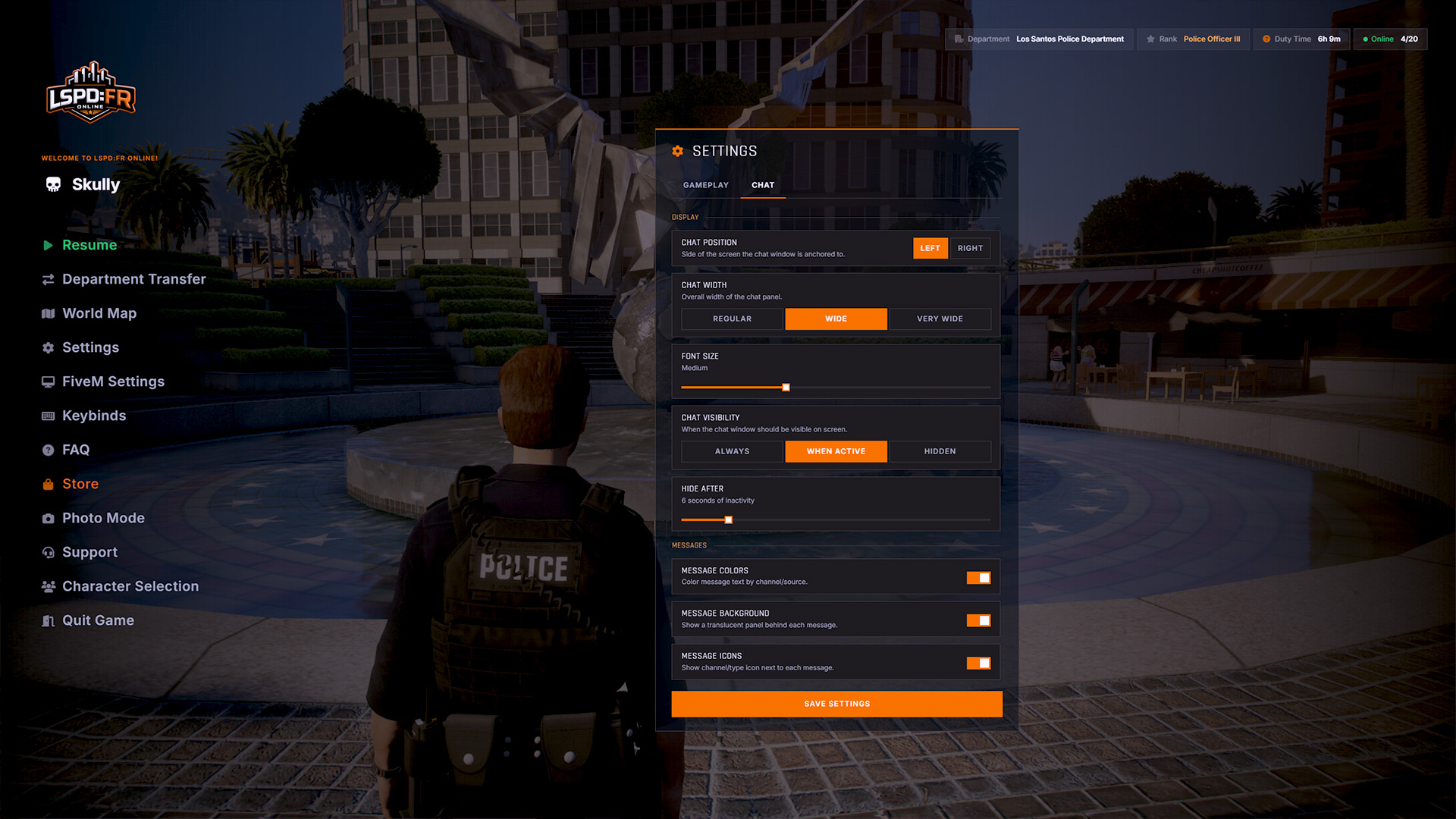
Press Esc to open the Pause Menu, where you'll find the new Settings panel. From here you can customise parts of your experience, such as certain sounds and interface options.
Getting Help
Stuck, confused, or found a bug? The fastest way to get help is our Discord. Staff and fellow officers are always happy to point new recruits in the right direction.